





Get started with your Pabau Pay card terminal!
Hooray – your card terminal has arrived! Now it’s time to set it up so you can start taking payments and say hello to a slicker, simpler, and more convenient checkout experience.
You and your customers can look forward to all this…

No more manual reconciliations
You won’t have to worry about leaving time aside for reconciliation - thank goodness!
Fewer manual errors
Tired of squinting at spreadsheets trying to figure out errors long after finishing time? Not anymore!
Card-free checkouts
Clients won’t even need to use their card or phone to pay if their card details are already stored
More flexible ways to pay
Contactless checkouts are convenient for you and convenient for clients.
Watch our video guide
Want to get started asap? Watch along as our Product Marketing Manager Alex walks you through how to set up the card terminal, from unboxing to taking your first payment.
10-15 minutes
Clients who want to get started quickly
What you need to get started:
- An active Pabau account
- Your Wi-Fi details
- Your card terminal
Book a set-up call
Prefer to set-up your card terminal with support on hand? No problem. You can schedule a call with our Revenue Growth Consultants who can guide you through it, step by step.
45-60 minutes
Clients who want hands-on support in setting up
What you need to get started:
- An active Pabau account
- Your Wi-Fi details
- Your card terminal

Setting up your card terminal: Resources and guides
Great news – you have two fantastic resources for learning how to set up and use the Pabau Pay card terminals – the Pabau Academy and the Pabau Knowledge Base. Bookmark these to help with set-up and ongoing payment processing in Pabau.
Pabau Academy
Card terminals course
Knowledge Base
Complete set-up guide
Getting started with Pabau Pay
1. Switch it on and power it up
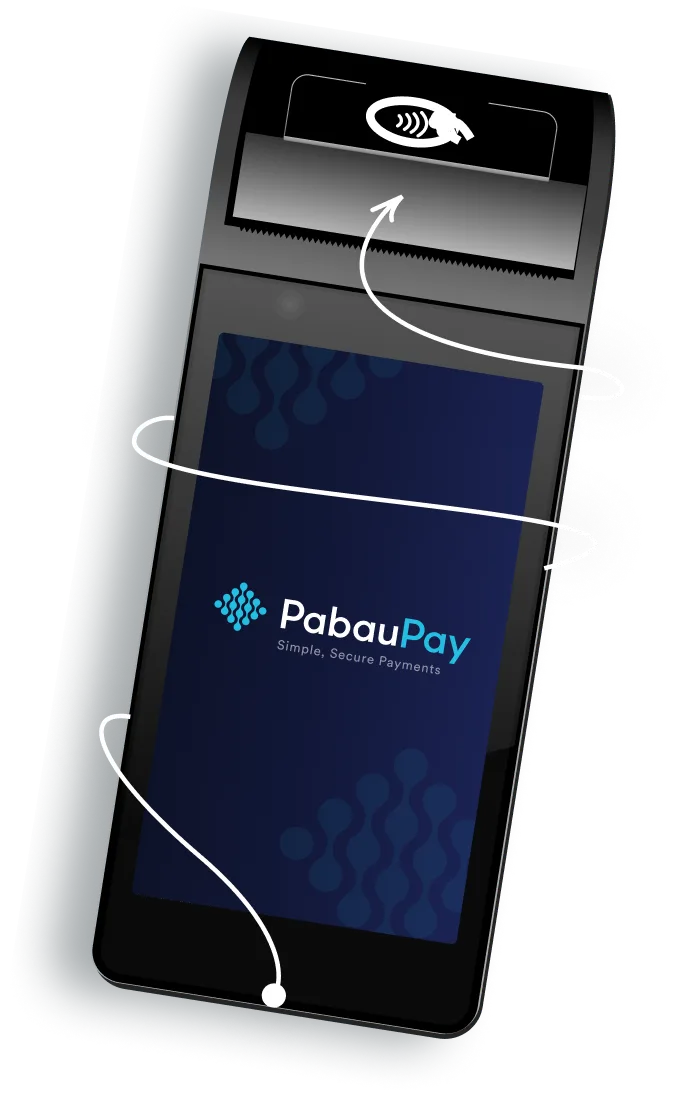
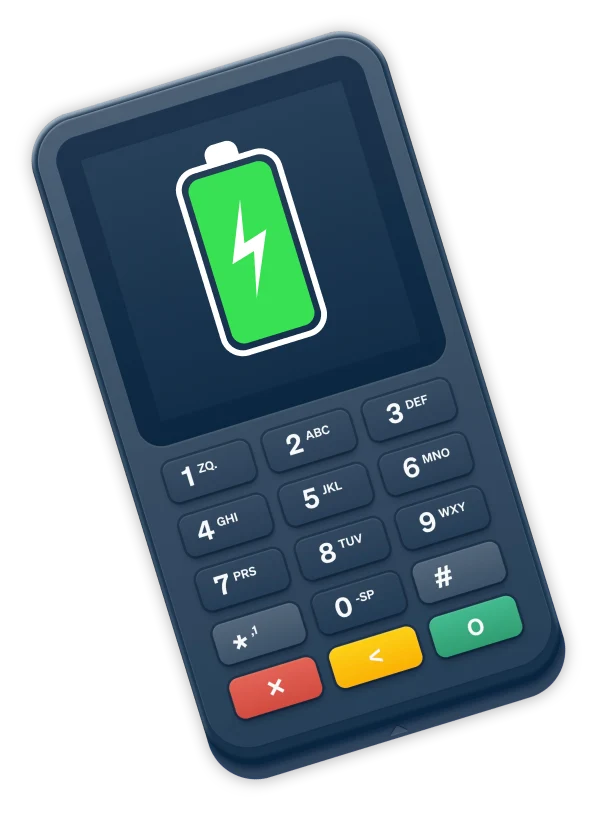
Your first step is the easiest – switch the card terminal on and check if it’s charged up. Once you’re ready, switch it on and you’ll be prompted to connect it to the Wi-Fi.
2. Activate Stripe
This step is important. If you’ve only ever used Pabau 2, keep reading. If you’ve previously used Pabau 1 and you had Stripe activated on Pabau 1, please go to step 2.1.
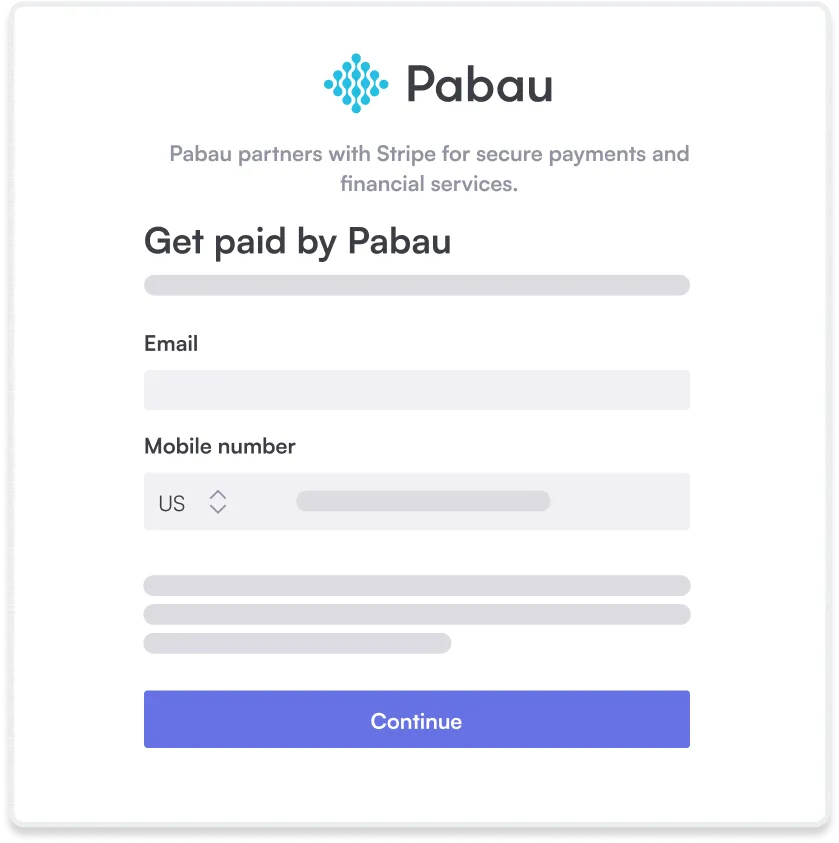
To start using the card terminal, you need to connect your Pabau account to Stripe. Our detailed guide, linked below, explains how to do this from the system.
Pro tip: You should also set up your deposits at this step.




2.1. Reconnect Stripe (Pabau 1 users only)
This step is only required if you have previously used Stripe in Pabau 1. You’ll first need to reconnect Stripe, which you can do in the card terminals section of the system.
This is essential for making sure the card terminal is connected and ready to be registered.
3. Register your card terminal in Pabau
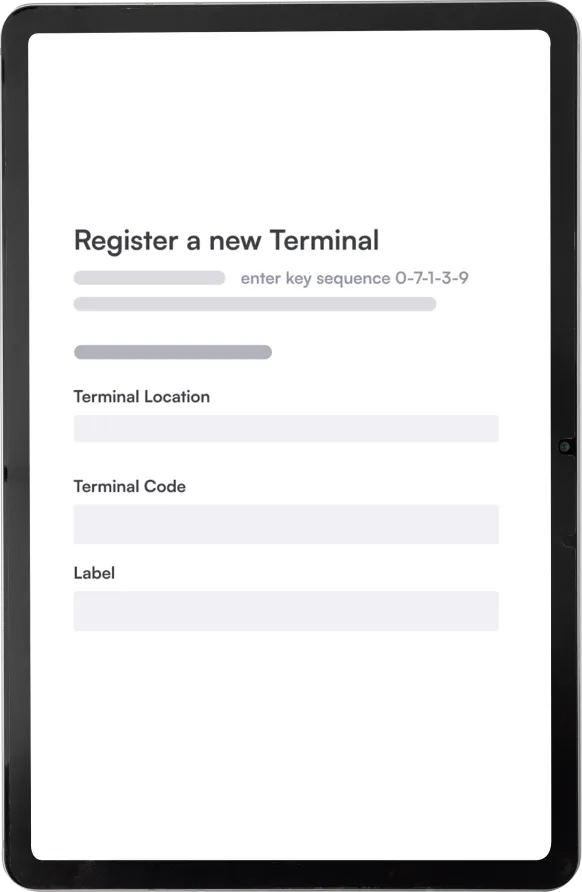
Log into your Pabau account and head to Setup on the left of the screen. Next, go to the Financials menu, select Card terminals, and complete the following steps.
First, confirm the location where the terminal will be used. Next, enter an admin code for the terminal (the code for all terminals is 0-7-1-3-9). This will generate a terminal code, which you should add to Pabau. Click on ‘Register’, and you’re done.
Detailed instructions are included in this step-by-step guide.
4. Enable your teams in the wallet
The next step is to make sure that the right people have the right permissions to manage payments in Pabau.
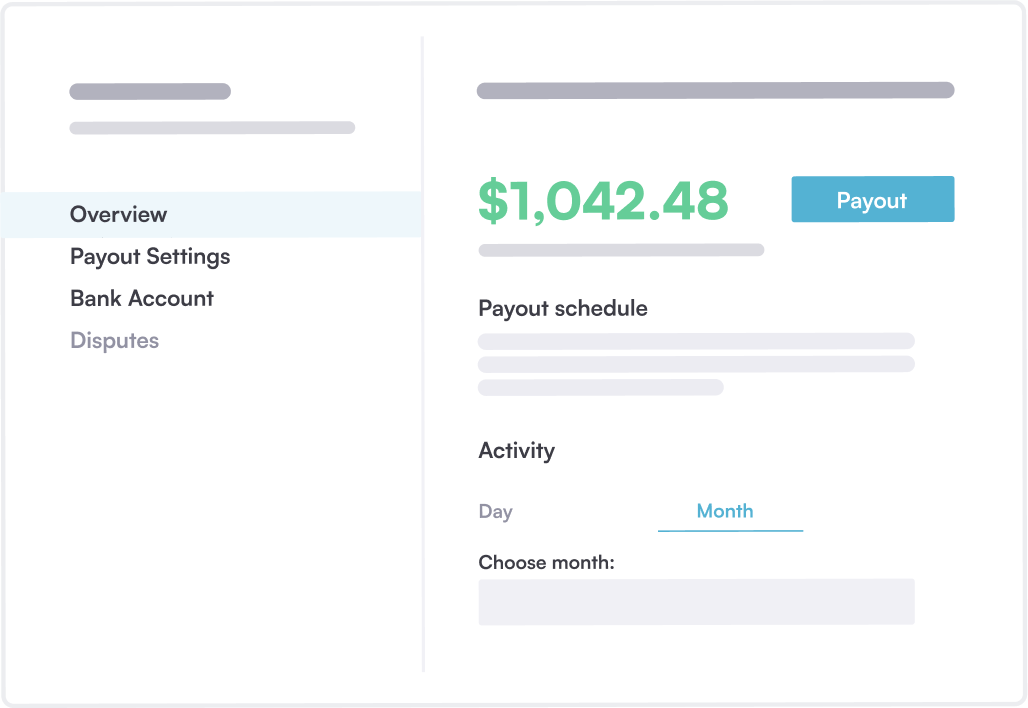
Managers and/or owners at your practice must have access to the Wallet feature to manage payouts efficiently. You can do this by enabling the Wallet feature in Pabau.
Don’t forget this step!
5. Check everything is working
Nearly there! The final step to check everything is working correctly.
Scroll to step six in this guide to test out taking a payment using dummy card data – to make sure that everything is processing as it should. If everything goes smoothly, great news, you’re ready to process your first card payment!✨
Run into a roadblock?

Tag us your go-live photos!
We love hearing about our clients successfully using our card terminals.
Once you’ve activated yours, take a picture and tag us on Instagram @pabau using the hashtag #poweredbypabau. We’d love to hear about how it’s going so far, how much time you’re saving, and how it’s making your life easier 📸
Win £250 in our monthly
prize draw!
Earn SMS
credits
Once you hit your first 10 payments, you can earn yourself 500 SMS credits if you post about your experience on Instagram (a story or on the grid) using the hashtag #poweredbypabau
Enter our monthly draw to win £250!
As soon as you’re processing payments using your terminal, you’ll be entered into our monthly prize draw where you could win the grand prize of £250! We’ll run these every month. You’ve got to be in it to win it!
Want another terminal?
If you work from more than one location, then you might decide that you need another card terminal. Order another one using the link: