
 Despina Petrushevska
Values exploration worksheet
Download your free values exploration worksheet A two-page printable form that o...

2
Last Updated: Nov 6, 2026
Free PDF 1 page, print-ready Clinician-reviewed
A QuickBooks invoice template is a reusable invoice layout with set fields for patient details, line items, tax, payment terms and your logo. It makes every bill your practice sends consistent and complete, which cuts billing errors and gets you paid faster.
You can download the free PDF below and fill it in, or rebuild the same layout inside QuickBooks. This guide covers both, with step-by-step setup for QuickBooks Online and QuickBooks Desktop.
A one-page invoice with practice and bill-to details, dated line items with a code column, and subtotal, discount, tax, amount paid and balance due. Fill it in as a PDF, or copy its layout into your QuickBooks template.
Start from scratch, or upload this PDF or any form you already use, and Pabau's AI Form rebuilds it with tick boxes, text fields and a signature. Attach it to the treatment once, and every patient gets it on time.
AI Form rebuilds the consent, history and aftercare forms you already use. You review each one, then publish.
Patients complete forms on their phone before they arrive, so the front desk stops retyping paper.
Every signed form is versioned and attached to the treatment record, ready when you need it.
Set how long a consent stays valid. Returning patients skip forms they have already signed.
Supports HIPAA and GDPR compliance AES-256 encryption 4.8 on G2 4.7 on Capterra Trusted by 4,000+ practices worldwide

A QuickBooks invoice template standardizes billing with patient details, line items, subtotal, tax, payment terms and your branding in one reusable form.
QuickBooks Online and QuickBooks Desktop both ship customizable templates, and the free PDF above works as a fill-in form or a layout to copy.
Editing a template in QuickBooks requires company admin permissions. Past invoices keep their old layout, and only invoices created after the edit change.
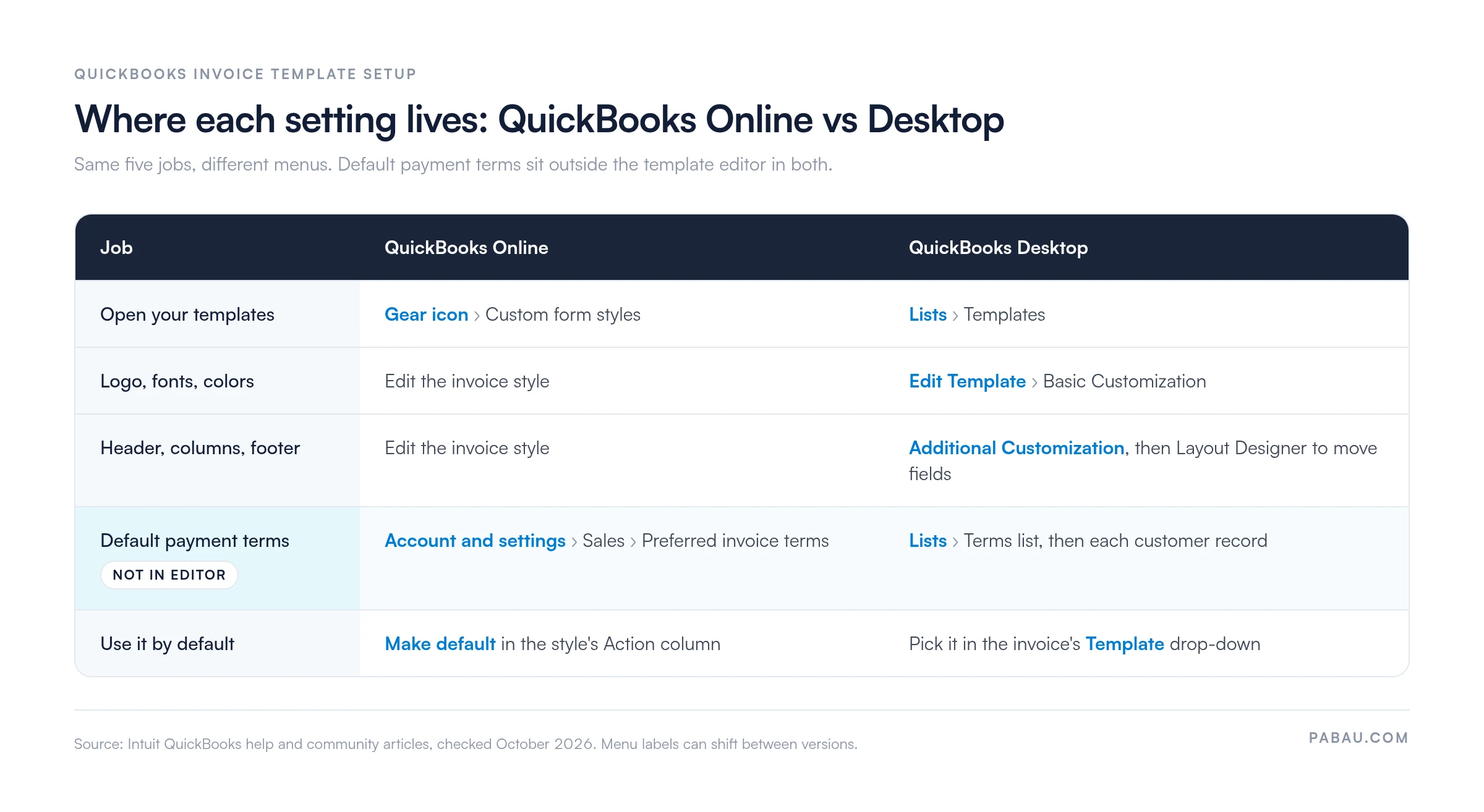
Default payment terms live outside the template editor in both versions, so set them separately or every invoice goes out without a due date.
Pabau, the practice management platform we build, starts each invoice from the appointment and patient record, so staff stop re-typing visit details.
Every invoice your practice sends needs the fields below. Leave one out and payment slows down, or your books stop reconciling.
The downloadable invoice template above covers most of these fields. It has practice and bill-to details, dated line items with a code column, and a summary of subtotal, discount, tax, amount paid and balance due. Add your logo and a memo line when you rebuild the layout in QuickBooks.
An invoice covers one bill at a time. The running record per patient lives in the patient account ledger, which lists each charge, payment and balance in date order.
QuickBooks Online comes with invoice styles you can customize in the browser. Six steps take you from a stock style to one that’s ready to send:
Mobile app limitation: The QuickBooks Online mobile app has limited template editing options. For full customization, use the desktop browser version.
QuickBooks Desktop handles templates through its own set of windows. To set up and use an invoice template in Desktop:
Key difference from QBO: Desktop templates are stored locally on your computer, while QBO templates are cloud-based and accessible from any device with internet access. The menus differ too, and the grid below maps each setting to where it lives in both versions.
Once the base template is in place, these habits keep your invoicing clear and quick to pay:
A QuickBooks template works best for practices already using QuickBooks. Depending on your workflow, you might pair it with other formats:
For a one-off invoice outside QuickBooks, our commercial invoice template is a Word-format alternative. Healthcare practices such as med spas, clinics and therapy offices can go further. Practice management software builds the invoice from the appointment and clinical record, which removes the manual entry step.
Use a patient payment form template to capture how the patient agreed to pay, signed and dated at booking. Keep a copy in the patient record, so the invoice you send matches the terms already agreed.
Different practice types need different invoice structures. Adjust the template to match how you bill:
Save each variant as its own custom form style in QuickBooks Online, or its own template in Desktop. You can then switch between them depending on the invoice you’re creating that day.
💡 Pro tip: Run a test invoice through your customized template before rolling it out practice-wide. Print it and ask your team if any fields are confusing or missing. A five-minute test saves hours of invoice confusion later.
With a QuickBooks template, someone at the front desk copies each visit into an invoice by hand. The patient’s name, the treatment, the provider and the price get typed twice, once in the booking system and once in QuickBooks.
Pabau, the practice management platform we build, keeps the appointment, the patient record and the invoice in one system. The invoice starts from the booking rather than a blank form. Patients who book through online booking arrive with their details already on file.
Details patients enter through Pabau’s intake software for practices land in that same record, so the bill-to fields are filled before checkout. The result is fewer typos, faster checkout, and one place to look when a patient queries a charge. Book a demo to see integrated invoicing inside a full practice management platform.

Pabau keeps appointments, patient records and invoices in one system, so treatment details and prices carry onto the bill without re-typing. Take payment at checkout and keep every charge tied to the visit it came from.
Start with the free PDF if you send a handful of invoices a week and already keep your books in QuickBooks. Set the layout once, set your payment terms in the right menu, and every invoice after that goes out complete.
The trade-off shows up as you grow. Each extra provider or location adds more appointment details to copy into QuickBooks by hand, and that copying is where billing errors start.
When re-typing costs more staff time than the template saves, move invoicing into the system that already holds the appointment. Book a demo to see how Pabau turns a finished appointment into an invoice ready for payment.

Need proof of payment once the invoice is settled? Receipt template for medical practices gives you a printable receipt and explains how it differs from an invoice.
Working outside QuickBooks? Commercial invoice template in Word walks through every field and how to fill it out.
Want to see how a trade-specific invoice is structured? Invoice template for builders shows what each invoice must show and which format fits the contract.
Go to the gear icon → Custom Form Styles → Invoice → Edit. Customize the layout, logo, columns, and footer, then click Save. Future invoices created from this template will automatically pull in your branding and default fields.
Yes. QuickBooks offers free downloadable invoice templates. The template at the top of this guide is also free, as a PDF you can fill in or copy into your own software.
No. Template changes apply only to new invoices created after you save the edit. All previously sent invoices keep their original formatting and data. This protects your audit trail and past patient records.
QuickBooks Online templates are cloud-based and customized via a web interface (Custom Form Styles). QuickBooks Desktop templates are customized in the Basic Customization, Additional Customization and Layout Designer windows on your computer. QBO templates are accessible from any device, while Desktop templates are local to one computer.
Yes, in QuickBooks Online. Full company admin access is required to modify Custom Form Styles. In QuickBooks Desktop, admin-level user permissions are also required to edit templates via the Layout Designer.
Limited. The QuickBooks Online mobile app does not support full template customization. You can view and use templates, but editing requires the desktop browser version or QuickBooks Desktop application.