
 Monika Lazarevska
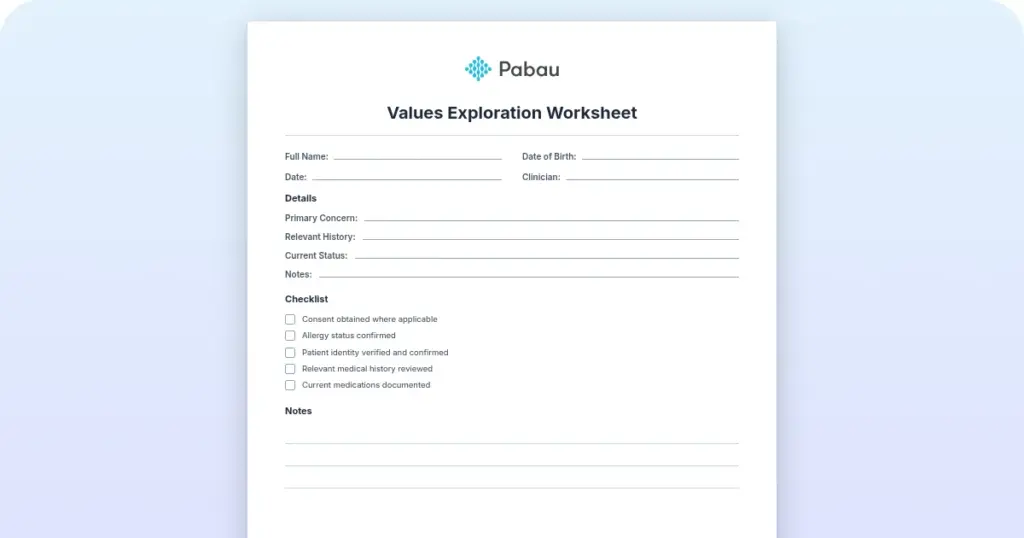
Values exploration worksheet
Download your free values exploration worksheet A two-page printable form that o...

2
Last Updated: Nov 6, 2026
Free PDF 1 page, print-ready Clinician-reviewed
An appointment schedule template gives your practice one place to track who’s booked in, when, and with which provider. Skip it, and a double-booked room or a missed reminder call turns into a frustrated patient and a scrambling front desk.
The fields below turn a blank sheet into something your whole team can rely on.
A simple, free printable template for organizing your practice’s appointments. Fill in your provider’s name and the week, then note appointments by hand, or use it as a starting point for a more detailed version in a spreadsheet. Handy for healthcare practices, medical spas, therapy practices, and wellness providers who want a quick, no-cost starting point.
Start from scratch, or upload this PDF or any form you already use, and Pabau's AI Form rebuilds it with tick boxes, text fields and a signature. Attach it to the treatment once, and every patient gets it on time.
AI Form rebuilds the consent, history and aftercare forms you already use. You review each one, then publish.
Patients complete forms on their phone before they arrive, so the front desk stops retyping paper.
Every signed form is versioned and attached to the treatment record, ready when you need it.
Set how long a consent stays valid. Returning patients skip forms they have already signed.
Supports HIPAA and GDPR compliance AES-256 encryption 4.8 on G2 4.7 on Capterra Trusted by 4,000+ practices worldwide

An appointment schedule template organizes patient bookings across time slots with fields for names, services, providers, and status tracking.
Essential columns include time, patient name, service type, provider, appointment duration, and notes to enable accurate documentation and reduce scheduling errors.
A free, downloadable PDF template gives practices a starting point for organizing appointments right away, no software investment required.
Practice management software like Pabau offers appointment scheduling features that automate reminders, prevent double-booking, and sync across multiple providers in one integrated platform.
An appointment schedule is a structured organizational document that records all patient bookings across specific time slots. It serves as the operational backbone of practice workflows, ensuring practitioners know which patients are arriving, when, and what services they require.
A professional appointment schedule template includes standardized columns for the core information practitioners need:
A complete appointment schedule ensures your team captures all information needed for accurate patient care and practice operations.
The following table shows the essential fields every professional appointment schedule should include:
Including these fields keeps your team aligned on what each patient needs, reducing errors and supporting consistent, high-quality care.
Many practices also add a contact column (phone or email) for confirmation reminders.
The free PDF template above is intentionally simple and doesn’t include these as ready-made columns. If you want them, recreate the layout in Excel or Google Sheets and add the fields yourself.

The free appointment schedule PDF above is a simple, printable sheet with space for your provider’s name, the week, and an open area to note appointments by hand. It’s a starting point, not a finished scheduling system.
If your practice needs a different layout, here’s how to adapt it yourself in Excel, Google Sheets, or on paper.
A daily layout works best for solo practitioners or single-room practices where one provider manages all appointments on a given day. List time slots vertically (9:00 AM, 9:30 AM, 10:00 AM, and so on) with columns for patient name, service, duration, and status alongside each one.
You can sketch this directly onto the printed PDF, or recreate it as a spreadsheet for a compact, scannable view of a shift-based or high-volume day.
A weekly layout suits multi-provider practices or those offering services across multiple days. Lay out days of the week across columns and time slots down the rows so you can see the full week at a glance.
Building this version in a spreadsheet, rather than on the single-page PDF, makes it easier to spot open slots, balance patient load, and plan staff breaks than a daily view alone.
Healthcare practices often need columns beyond time and patient name. If you’re recreating your schedule in a spreadsheet, consider adding patient ID, insurance information, appointment reason, clinical priority flags, and post-appointment follow-up notes.
Because this turns your schedule into a document holding patient information, store it securely and limit access. See our guide to HIPAA compliance for what that involves.
Digital intake tools send this form to patients ahead of the visit and file responses automatically.
Building your own appointment schedule in Excel or Google Sheets takes just a few steps. Follow this process to set up a functional scheduling system for your practice:
A well-designed appointment schedule reduces no-shows, improves workflow efficiency, and enhances the patient experience. Implement these proven best practices in your practice:
Practices serving patients with complex medical histories or ongoing treatment plans benefit from adding extra columns to their appointment schedule. Patient-specific templates include space for treatment history, contraindications, allergies, and post-appointment care instructions. This ensures continuity of care, particularly in mental health. Practice management software earns its place when the front desk and the clinician read the same record. Mental health providers running virtual sessions still need HIPAA compliant telehealth platforms to keep those appointments secure.
A patient appointment schedule template also helps reduce no-shows by connecting appointment data to patient contact history. When your team can quickly reference why a patient is coming in, what they’ve previously experienced, and what follow-up care they need, you send more personalized reminders and demonstrate genuine care.

Watch how Pabau’s appointment scheduling eliminates the limitations of spreadsheets: automated reminders, multi-provider calendar views, online booking, and integration with patient records.
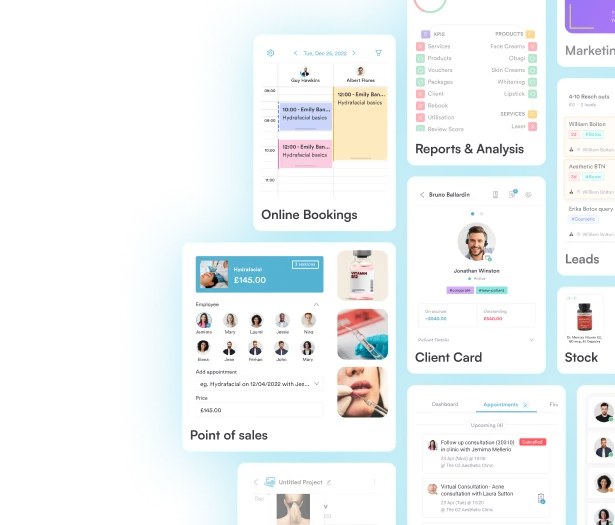
Manual appointment schedule templates work well for single practitioners or very small teams. However, as your practice grows, spreadsheets reveal significant limitations:
Pabau’s online appointment scheduling system eliminates these pain points. Practices get automated reminders that reduce no-shows, patient-facing online booking that cuts phone traffic.
The scheduling module connects directly to patient portals, invoicing.
An appointment schedule template is a practical tool for any healthcare practice. Start with the free downloadable template above to organize your bookings, then apply the best practices covered here to keep your practice workflow running smoothly.
As your practice scales.

Choosing scheduling software that protects patient data? HIPAA compliant scheduling software Ranks six options for secure booking, patient records, and consent forms.
Comparing scheduling platforms for your practice? medical practice scheduling software options Compares seven tools for appointments, automation, reminders, and patient workflows.
Setting expectations around missed appointments? appointment cancellation policy template A ready-to-use policy covering notice periods, no-show fees, and specialty-specific language.
An appointment schedule should include date and time, patient name, service type, provider assigned, appointment duration, status (confirmed/canceled/completed), and a notes column for clinical context or special requests.
Yes. Google Sheets works well for small practices because it’s free, cloud-based, and shareable. You can create custom formulas, color-code appointments, and access it from any device. However, it lacks automation features like reminders and online booking that dedicated scheduling software provides.
A daily schedule displays one day’s time slots vertically and works best for solo practitioners. A weekly schedule shows days across columns and is better for multi-provider practices wanting to see the full week’s availability at a glance.
Send automated reminders 24 hours before appointments, enforce a clear cancellation policy, flag high-priority patients who need personal outreach, and track no-show patterns to identify which time slots have the most cancellations.
A spreadsheet can be HIPAA-compliant if you store it securely (encrypted storage, access controls) and limit it to minimal necessary patient information (name, appointment time). However, dedicated healthcare software with built-in compliance features is more secure and requires less manual oversight.
The free template above is a printable PDF, which is the simplest option if you just want to print it and fill it in by hand. If you want more flexibility, copy the fields into a Google Sheets or Excel spreadsheet yourself: Google Sheets is easiest for cloud collaboration, while Excel offers more advanced formulas and formatting.